Transactions
Transactions
Auto-lock
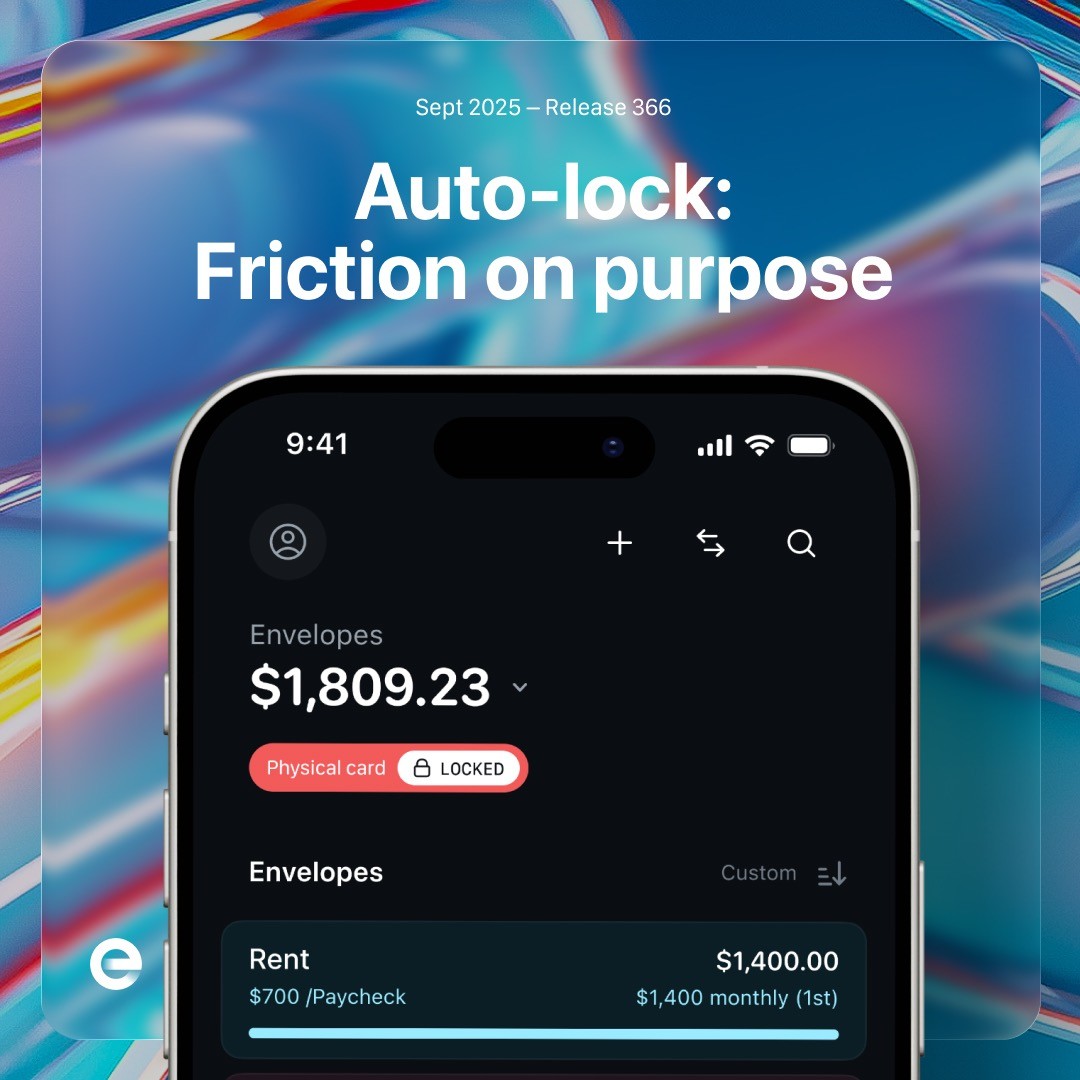
Auto-lock is an optional spending control for your physical Envelope card. It keeps the card locked until you choose an envelope for your next purchase. After the purchase, the card locks again automatically.
Turn on Auto-lock
Open the settings for your physical card in the Envelope app.
Enable Auto-lock.
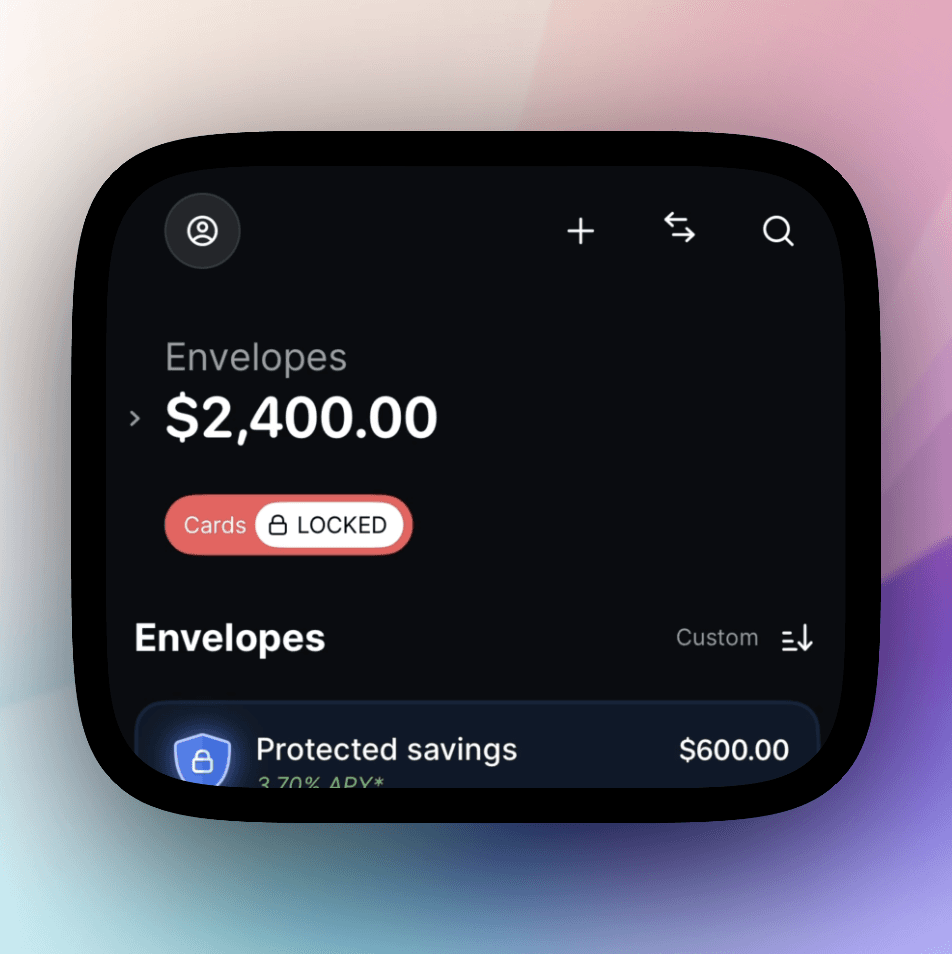
Enabling Auto-lock adds a quick-unlock control to the top of the Envelopes tab.
Make a purchase
Before using your physical card:
Open the Envelopes tab.
Tap the quick-unlock control.
Choose an envelope with enough available money for the purchase.
Complete the purchase with your physical card.
The purchase is assigned to the envelope you selected, and the physical card locks again automatically. Repeat these steps before each physical-card purchase.
What Auto-lock affects
Auto-lock applies only to your physical card. It does not lock your general virtual card or individual envelope cards, so recurring bills and subscriptions can continue to use a virtual card without requiring an unlock.
On a joint account, each partner controls Auto-lock for their own physical card. Unlocking or using one partner's card does not unlock or lock the other partner's card.
Purchases charged later
Some merchants (like Amazon) authorize or charge a card after checkout—for example, when an order ships. Auto-lock may have locked the physical card again by then, causing a decline. For these purchases, use a virtual card that remains available for the later charge.
Use a card tied to an envelope
Create a virtual card for the relevant envelope and save it with the merchant. The card remains available for the delayed charge and is limited to that envelope's balance.
Use the general virtual card
Save the general virtual card with the merchant. This avoids Auto-lock because Auto-lock applies to the physical card, but you will assign the transaction after it posts.
If you cannot access your phone
You cannot unlock an Auto-locked card without access to the Envelope app. This can protect the physical card if it is lost or stolen, but it also means you may be unable to use the card if your phone is unavailable, out of power, or cannot connect.
Consider turning off Auto-lock before a situation in which you expect limited phone access. If your card or phone is missing, follow the steps in Card security, lost cards, and disputes.
Turn off Auto-lock
Open the settings for your physical card and disable Auto-lock. The physical card will no longer require you to choose an envelope and unlock it before every purchase.